
Dependency Installation Failed
If external tools fail to install, try again from Settings -> Dependency. Version 1.9.0 uses an in-app guided installation window with automatic retry. Check your network connection if the issue persists.
If you encounter issues with Zipic, this guide will help you collect diagnostic information and resolve common problems.
Zipic includes a built-in Debug Mode that enables detailed runtime logging. This is essential for diagnosing compression issues, unexpected behavior, or crashes.
⌘ + ,) and navigate to the License tab.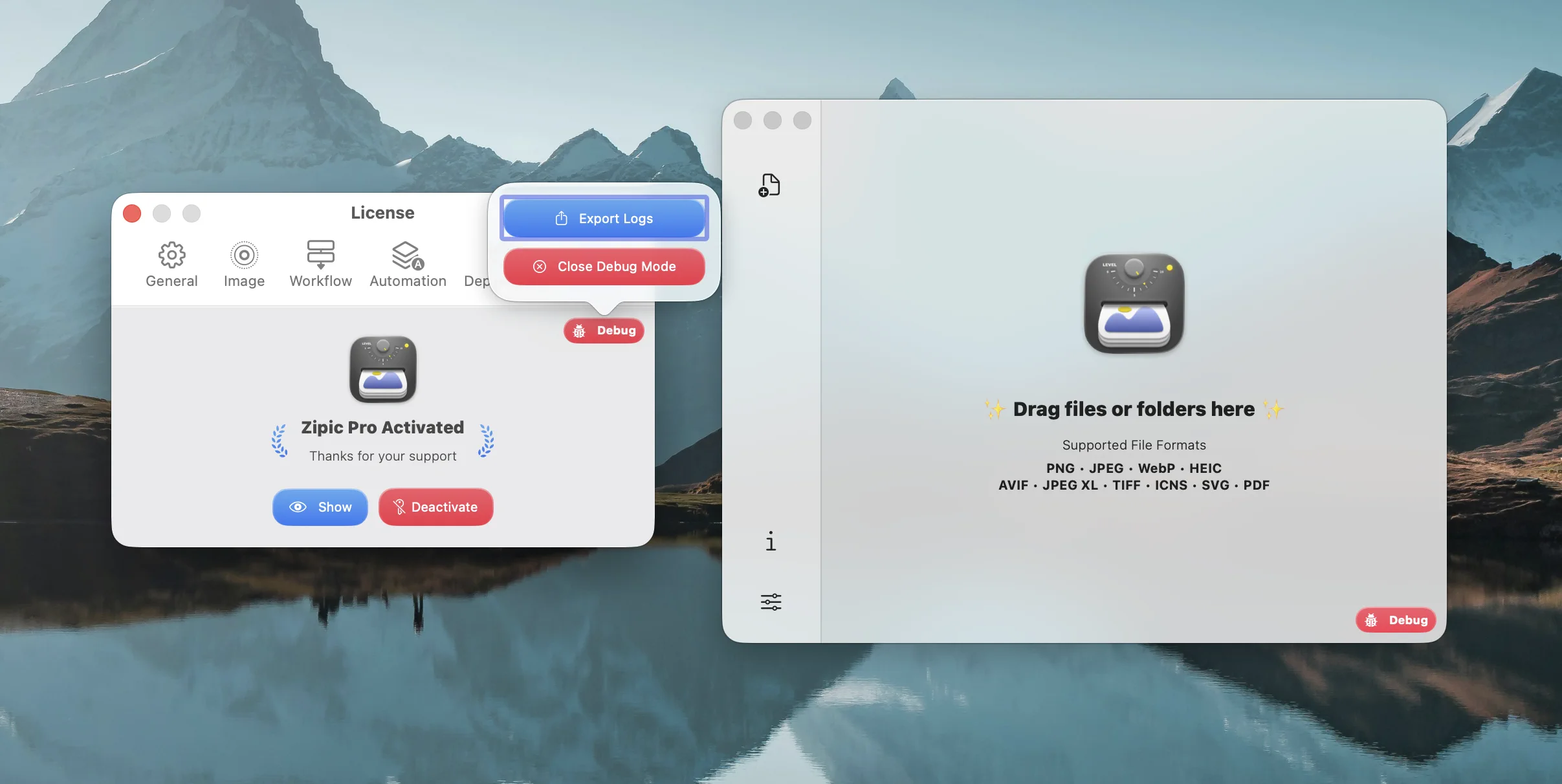
After activating Debug Mode and reproducing the issue, you can export the runtime logs for troubleshooting or to share with our support team.
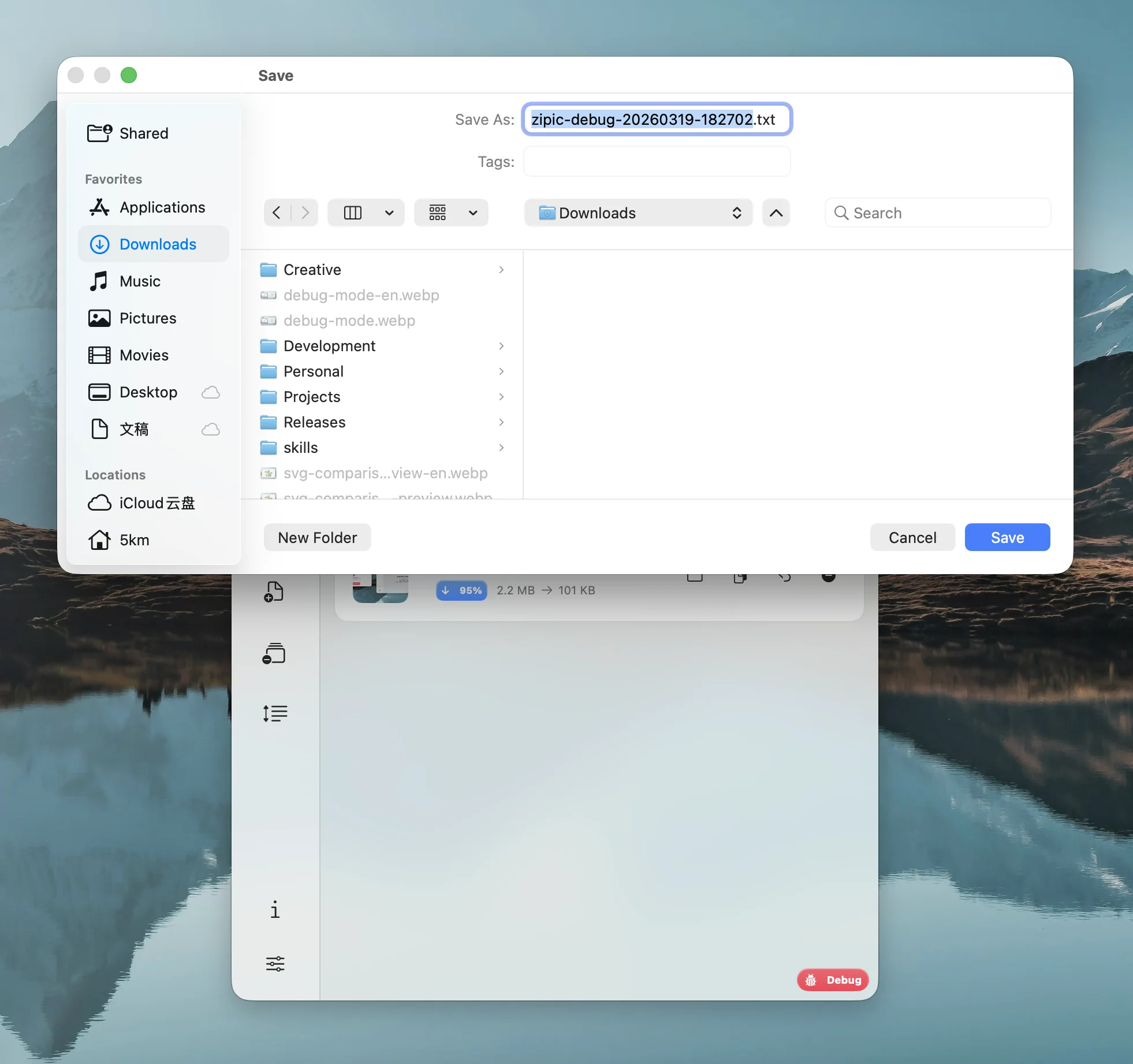
Dependency Installation Failed
If external tools fail to install, try again from Settings -> Dependency. Version 1.9.0 uses an in-app guided installation window with automatic retry. Check your network connection if the issue persists.
Compression Not Starting
Ensure the file format is supported. If files are being skipped, Smart Skip may have detected them as already compressed — try changing compression settings to trigger re-compression.
Encrypted PDF Error
Zipic automatically detects encrypted PDFs and displays a friendly prompt. You’ll need to decrypt the PDF before compression. Ensure Ghostscript is installed in Settings -> Dependency.
NotchDrop Not Appearing
Make sure “Drag to Notch for compression” is enabled in Settings -> Workflow. Version 1.9.0 fixes several issues with NotchDrop in full-screen apps, after display changes, and with non-drag gestures.
If clicking the Zipic icon results in no window appearing, the Dock icon bouncing and disappearing, or the app failing to open after upgrading to a new version — this is usually caused by incompatible local “Folder Monitoring” settings in the new version.
Open Terminal (search for it in Spotlight), copy and paste the entire command below:
# 1. Quit Zipic completelykillall Zipic 2>/dev/null
# 2. Disable all monitoring items (preserves directory list)python3 << 'EOF'import plistlib, json, osplist_path = os.path.expanduser('~/Library/Preferences/studio.5km.zipic.plist')with open(plist_path, 'rb') as f:    pl = plistlib.load(f)if 'MonitorItems' in pl:    items = json.loads(pl['MonitorItems'].decode())    for item in items:        item['enable'] = False    pl['MonitorItems'] = json.dumps(items).encode()    with open(plist_path, 'wb') as f:        plistlib.dump(pl, f)    print(f'Disabled {len(items)} monitoring item(s)')else:    print('No monitoring config found — try opening Zipic directly')EOF
# 3. Reopen Zipicopen -a ZipicIf the app still won’t launch after running the command, please contact us at [email protected] with your macOS version and chip information (e.g., macOS 26.4.1 / M2).
If you’ve collected debug logs and need further assistance, please reach out to our support team: